
Let's talk about clouds
not the ones floating around in the sky, but the ones you have to pay for to store your data

Ok, seniors... I mean, 'active adults,' this one is for you. One day, while I was writing a Word document, I noticed (seemingly for the first time) that across the very top of the page was an option to ‘AutoSave’ my document. Next to that was the typical icon, I was accustomed to, of a disk drive to click to save my document on the hard drive of my computer. Across the top of all modern Word document pages are two features that provide the writer with powerful tools to help produce quality content: the Ribbon and the Quick Access Toolbar. The image below illustrates what is called the Ribbon.
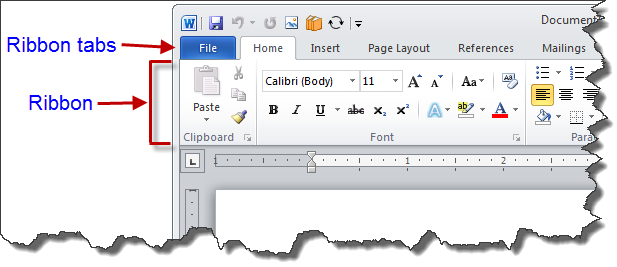
The line of icons across the space above the ribbon is part of the Quick Access Toolbar.
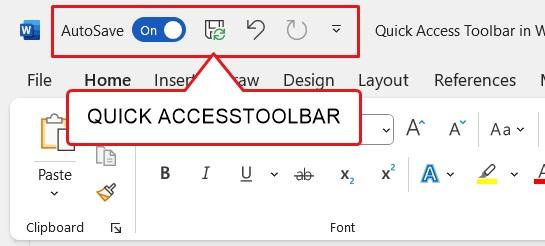
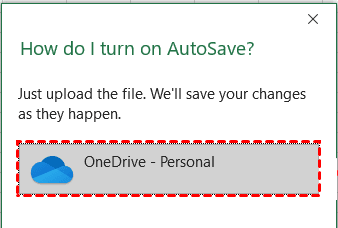
I noticed the option to AutoSave on the Quick Access toolbar. I thought what a great idea. Press a button, and my work is routinely and automatically saved as I write, without me having to stop to ensure it happens, unlike in times past. I thought of the many moments in college and at work, while making the final touches to my document, when I realized I had forgotten to click the save button and lost paragraphs of work. So, taking advantage of the outstanding technology at my disposal, I activated the AutoSave button, and what happened next was not quite what I had expected. My work was not saved to my hard drive, as I was accustomed to. With this modern technology, I thought it would not only be saved to my hard drive but also be saved there automatically and repeatedly. Instead, a pop-up appeared asking me if I wanted to turn on autosave, and all I had to do was upload the file. Upload the file? Where? OneDrive-Personal, which I discovered during this process, is Microsoft’s cloud computing platform. And guess what, it came with my subscription to Microsoft 365 (Word, Excel, PowerPoint, etc.), which includes 5 GB (five gigabytes) of storage. That was my introduction to the Cloud.
Many companies offer cloud services, and users of these services utilize the service based on the multiple functionalities that best meet their needs. Concepts such as IaaS (Infrastructure as a Service), PaaS (Platform as a Service), and SaaS (Software as a Service), as well as data centers, are all part of the cloud landscape. My AI assistant Grok 3 (artificial intelligence (AI) supplied by Elon Musk on X) provided a list of the largest cloud storage services comparable to Microsoft OneDrive, which include Google Drive, Dropbox, and Apple iCloud. What they have in common with OneDrive-Personal is that they, too, offer cloud storage that not only provides storage for your files but also offers syncing, collaboration, and security. All of these features on OneDrive-Personal fall under the SaaS cloud functionality. According to Grok, Microsoft OneDrive is a SaaS (Software as a Service) product because SaaS offers ‘a complete, user-facing solution with no infrastructure management required.’ What?! The keyword at the heart of how I use OneDrive is STORAGE, and also to safely back up my documents.
I discovered during my experience using Microsoft OneDrive to auto-save my Word document that I now had two versions of the same document. One on my computer, on my hard drive, and a second in the cloud on a computer housed in a data center filled with giant mainframe computers somewhere, with 5GB of disk space dedicated to me as part of my Microsoft 365 subscription. I had to be mindful not to overwrite the active version being saved to the cloud with the old version housed on my hard drive. Below is a video guide for beginners on how OneDrive for Windows works.
My next post in this ‘active adults’ series on technology is ‘Let’s Talk About Clouds: Part II.’ This next post describes my experience when I decided to take saving my files on the cloud to a whole new level, where I went from saving one Word document file to the cloud to backing up an entire folder of files from my computer’s hard drive to my OneDrive cloud space. Once I selected the folder containing all my document files, which was located in my File Explorer folder on my computer’s hard drive, to be backed up on OneDrive, they disappeared from my computer’s hard drive. I panicked because I assumed that they were deleted and lost forever. That’s how unfamiliar I was with the concept of cloud technology and backing up whole folders filled with document files. Even my explanations and questions to the Best Buy tech support folks about what had happened when I backed up my files to the OneDrive cloud were below their ability to comprehend what I was asking them.
My final comment before concluding this post is a question: When do you have to pay to store your data/posts/work/files in the cloud, considering the service is included in the Microsoft 365 subscription? The answer is once your storage needs exceed 5GB.